How to Turn Off Copilot in Windows 11 (Disable or Hide Completely)
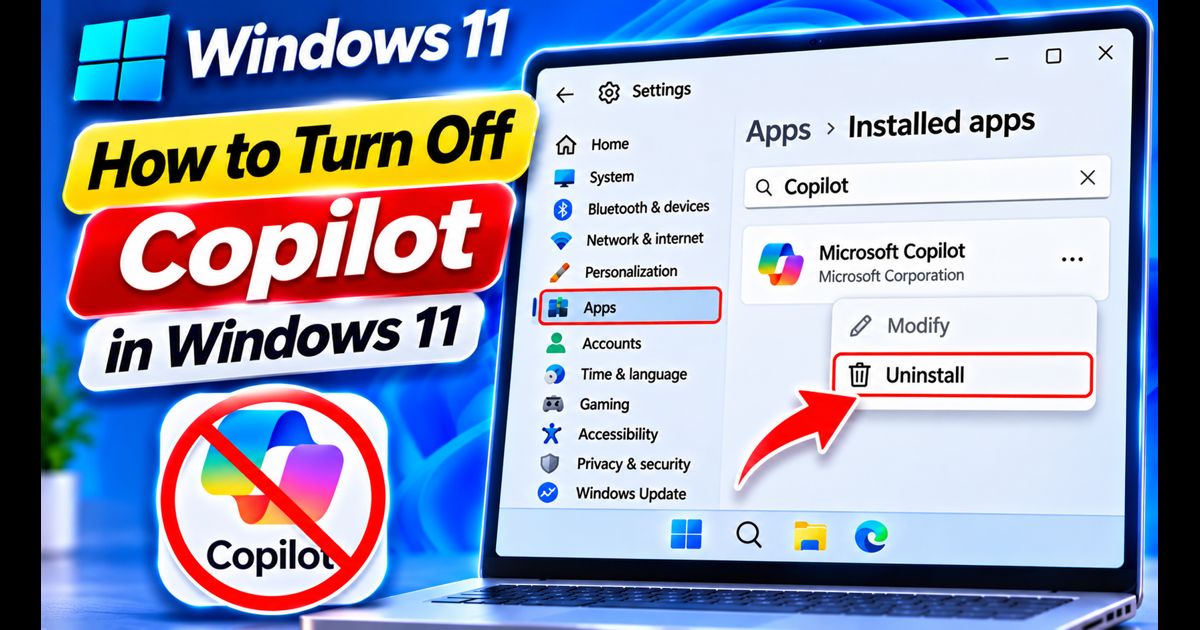
Microsoft has heavily integrated its artificial intelligence assistant, Copilot, across modern builds of Windows 11. Between taskbar icons, dedicated keyboard shortcuts (Windows Key + C), and Edge sidebar integrations, Microsoft aims to make generative AI a permanent fixture of your desktop workflow.
However, many users find Copilot unnecessary, distracting, or an unwelcome consumer of background memory and telemetry bandwidth. Whether you simply want to hide its taskbar icon or permanently disable the Copilot engine from loading altogether, Windows 11 provides safe, native configuration methods.
Quick Answer: How to Turn Off Copilot on Windows 11
To simply hide the icon, right-click the taskbar, choose Taskbar settings, and toggle Copilot to Off. To disable Copilot completely so it cannot be invoked via shortcuts or background services, open gpedit.msc (or Registry Editor on Home edition), navigate to Windows Copilot, and set the policy Turn off Windows Copilot to Enabled.
Method 1: Hide the Copilot Icon from the Taskbar (Quickest)
If you don't mind Copilot existing in the background but simply want to eliminate the taskbar button and prevent accidental clicks, you can hide it via native settings.
- Right-click any empty space on your Taskbar and select Taskbar settings (or go to Settings > Personalization > Taskbar).
- Under the top section labeled Taskbar items, locate Copilot (preview).
- Switch the toggle beside it from On to Off.
- The Copilot icon will vanish from your taskbar immediately without requiring a system restart.
Note: Hiding the taskbar icon only removes the graphical button. Copilot can still be triggered accidentally if you press Windows Key + C. To disable the feature completely, use Method 2 or Method 3 below.
Method 2: Completely Disable Copilot via Group Policy (Windows 11 Pro & Enterprise)
If your computer runs Windows 11 Pro, Education, or Enterprise, you can disable the Copilot subsystem entirely using the Local Group Policy Editor.
- Press Windows Key + R on your keyboard to open the Run box.
- Type
gpedit.mscand press Enter to launch the Group Policy Editor. - In the left sidebar, navigate through the following path:
User Configuration > Administrative Templates > Windows Components > Windows Copilot - In the right pane, double-click the policy setting titled Turn off Windows Copilot.
- Select the Enabled radio button (enabling this policy instructs Windows to deactivate Copilot).
- Click Apply, then click OK.
- Restart your PC or sign out and back in. The Windows Key + C shortcut will no longer function, and Copilot services will be terminated.
Method 3: Completely Disable Copilot via Registry Editor (Windows 11 Home)
Because Windows 11 Home edition lacks the Group Policy Editor, you can achieve the exact same permanent deactivation by creating a dedicated registry key.
- Press Windows Key + S, type regedit, and click Run as administrator.
- In the address bar at the top, paste the following path and press Enter:
HKEY_CURRENT_USER\Software\Policies\Microsoft\Windows - Check if a sub-folder (key) named
WindowsCopilotexists under the Windows folder. If not, right-click the Windows folder, select New > Key, and name itWindowsCopilot. - Click on the newly created WindowsCopilot key.
- Right-click in the empty space of the right-hand panel, select New > DWORD (32-bit) Value, and name it:
TurnOffWindowsCopilot - Double-click
TurnOffWindowsCopilot, change its Value data from0to 1, and click OK. - Restart your computer to apply the restriction.
Tip: To turn Copilot back on in the future, simply return to this registry location and delete the TurnOffWindowsCopilot value.
Method 4: Turn Off Copilot in Microsoft Edge
Even after disabling Windows Copilot, Microsoft Edge retains its own dedicated Copilot sidebar button by default.
- Open the Microsoft Edge browser.
- Click the three dots (...) in the top-right corner and select Settings.
- Select Sidebar from the left-hand navigation menu.
- Under App and notification settings, click on Copilot.
- Toggle Show Copilot to Off.
- The colorful Copilot button in the upper-right corner of Edge will disappear immediately.
Comparison: Hiding vs. Permanently Disabling Copilot
| Action | Taskbar Icon | Win + C Shortcut | Background Telemetry |
|---|---|---|---|
| Hide via Settings | Removed | Still Active | Still Active |
| Disable via Group Policy | Removed | Completely Disabled | Deactivated |
| Disable via Registry | Removed | Completely Disabled | Deactivated |
Optimize Your Clean Windows 11 Setup
Deactivating Copilot eliminates desktop distractions. To further enhance your operating system's privacy, memory footprint, and responsiveness, explore our related optimization guides:
- Follow our step-by-step tutorial on how to disable telemetry in Windows 11 to prevent background tracking.
- Purge pre-installed sponsored trialware cleanly with our guide on Windows 11 bloatware removal.
- Cut your PC's boot delay in half using our guide to disable startup apps on Windows 11.
- Implement visual and power performance tweaks from our master guide on how to speed up Windows 11.
Frequently Asked Questions
Can I uninstall Copilot like a standard app?
In older builds, Copilot was deeply integrated into the Windows shell and could not be uninstalled via Settings. In recent builds (24H2 and newer), Microsoft has begun packaging Copilot as a web app. Check Settings > Apps > Installed apps; if a dedicated "Copilot" entry appears with three dots, you can click Uninstall directly.
Does turning off Copilot affect other Microsoft services?
No. Disabling Windows Copilot only disables the AI sidebar assistant. Core Windows features, File Explorer, Microsoft Office, Windows Search, and system security functions operate completely normally without any disruption.