How to Create a Windows 11 Bootable USB Drive (3 Proven Methods)
Whether you are building a new custom desktop PC, upgrading an existing computer from an older version of Windows, or preparing an emergency rescue drive to fix unbootable system errors, having a dedicated Windows 11 bootable USB drive in your toolkit is essential.
Creating installation media is a straightforward process, but choosing the right tool depends on your target hardware. Microsoft offers an official automated utility for standard computers, while open-source tools like Rufus and Ventoy provide crucial configuration options for older hardware, custom partitions, and local account setups.
Quick Answer: The Easiest Way to Make a Bootable Windows 11 USB
To create a standard bootable USB, insert an empty flash drive (at least 8GB) and download the official Microsoft Media Creation Tool. Run the installer, accept license terms, choose USB flash drive as your media, select your connected drive letter, and click Next. The tool will automatically download the latest Windows 11 build and format your drive in about 15 minutes.
Prerequisites Before You Begin
- A USB Flash Drive: At least 8GB capacity (16GB or 32GB recommended).
- A Stable Internet Connection: The Windows 11 installer image is approximately 5.5GB to 6.2GB in size.
- Backup Your USB Drive: Creating bootable media completely formats your flash drive. Any existing files stored on the drive will be permanently erased.
Method 1: Using the Official Microsoft Media Creation Tool (Easiest)
If your computer meets standard Windows 11 hardware criteria (UEFI Secure Boot and TPM 2.0), Microsoft's official Media Creation Tool is the most seamless method because it automates downloading and formatting in a single pass.
- Navigate to Microsoft's official Download Windows 11 webpage.
- Under the Create Windows 11 Installation Media section, click Download Now to get the
mediacreationtool.exefile. - Plug your USB flash drive into your computer, then run the downloaded executable.
- Accept the software license terms.
- Confirm your desired language and Windows 11 edition (or leave Use the recommended options for this PC checked), then click Next.
- On the Choose which media to use screen, select the radio button for USB flash drive and click Next.
- Select your connected flash drive from the list. Double-check the drive letter to avoid accidentally overwriting an external backup drive.
- Click Next. The utility will download the Windows 11 image, verify its integrity, and burn the boot files automatically.
- Once the progress bar reaches 100%, click Finish. Your drive is ready to boot.
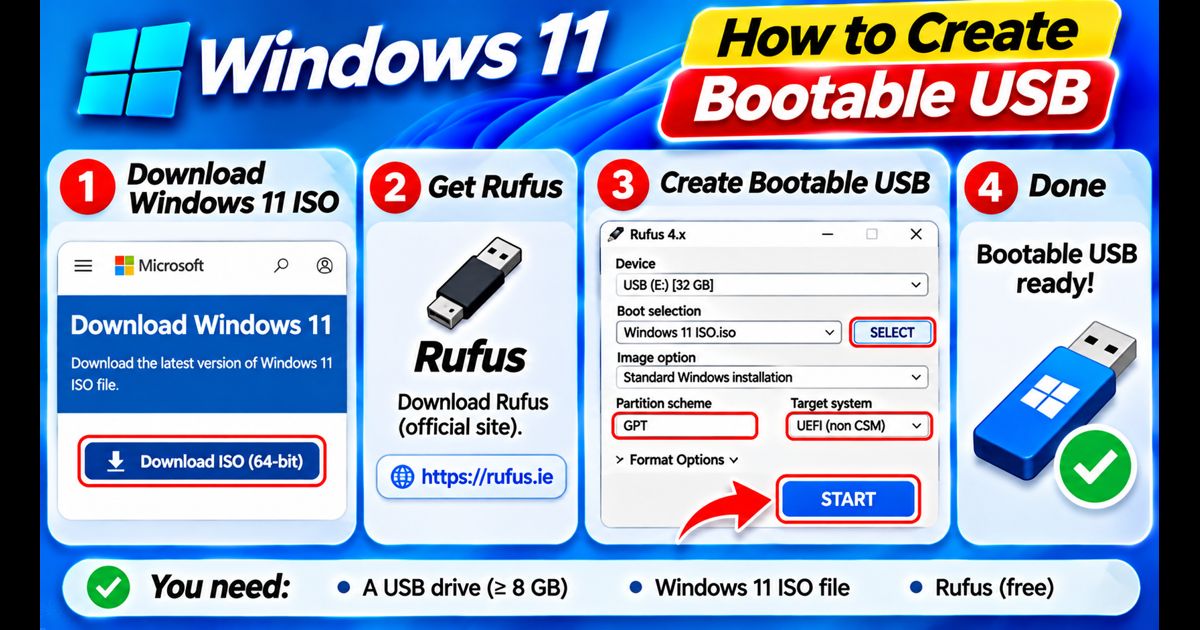
Method 2: Using Rufus (Best for Custom Options & Older PCs)
If you need to install Windows 11 on an older machine with an MBR partition scheme, or if your PC does not have TPM 2.0, Rufus is the superior choice. As detailed in our guide on how to bypass Windows 11 TPM requirements, Rufus can strip out hardware locks automatically.
- Download the official Windows 11 ISO file from Microsoft's website.
- Download the latest portable release of Rufus from its official site (rufus.ie).
- Insert your flash drive and launch Rufus.
- Under Device, choose your flash drive.
- Click SELECT and browse to your downloaded Windows 11 ISO file.
- Configure your partition scheme:
- GPT (Target: UEFI): For modern computers built within the last 8-10 years.
- MBR (Target: BIOS/UEFI-CSM): For classic legacy BIOS motherboards.
- Click START at the bottom.
- In the customization prompt, you can check options to bypass TPM 2.0 / Secure Boot, disable bitlocker automatic drive encryption, or automatically create a local offline user account.
- Click OK and confirm the format warning. Rufus will burn the ISO to your USB in roughly 5 to 10 minutes.
Method 3: Using Ventoy (Multi-Boot Multiple ISOs on One USB)
Ventoy is an innovative open-source tool that formats your flash drive once. Afterwards, you never need to re-format your drive—simply drag and drop ISO files directly into File Explorer.
- Download Ventoy from its official GitHub repository (ventoy.net) and extract the ZIP archive.
- Run
Ventoy2Disk.exe. - Select your flash drive and click Install (confirm the formatting warnings).
- Once complete, open File Explorer. You will see a standard empty storage partition labeled Ventoy.
- Copy and paste your Windows 11 ISO file directly onto the USB drive like a regular movie or document.
- When you boot your computer from this USB, Ventoy will present a menu allowing you to select and launch any ISO on the drive (you can even store Windows 10, Windows 11, and Linux installers side by side).
Method Comparison: Which Tool Fits Your Needs?
| Feature | Media Creation Tool | Rufus | Ventoy |
|---|---|---|---|
| Difficulty | Very Easy | Moderate | Easy |
| Downloads ISO Automatically? | Yes | Yes (via dropdown) | No (Manual download) |
| Bypass TPM / Secure Boot? | No | Yes (1-Click checkbox) | Supported via plugins |
| Support Legacy BIOS (MBR)? | Limited | Yes | Yes |
| Store Multiple OS Installers? | No (1 OS only) | No (1 OS only) | Yes (Unlimited ISOs) |
Next Steps After Installing Windows 11
Once you boot from your fresh USB media and complete Windows installation, keep your operating system snappy, clean, and private by following our companion optimization guides:
- Follow our master checklist on how to speed up Windows 11 to configure high-performance power profiles and disable visual stutters.
- Eliminate sponsored clutter immediately with our guide to Windows 11 bloatware removal.
- Halt background diagnostic tracking using our tutorial on how to disable telemetry in Windows 11.
- Prevent boot delays before they start by learning how to disable startup apps on Windows 11.
Frequently Asked Questions
How do I boot my PC from the USB drive?
Turn off your computer, plug the USB drive into a direct motherboard port, and power it on while repeatedly pressing your motherboard's Boot Menu key (commonly F12 on Dell and Lenovo, F9 on HP, F11 or F8 on Asus/MSI). Select your USB drive from the boot device list.
Can I use a 64GB or 128GB USB drive?
Yes. However, note that Microsoft's official Media Creation Tool will format large USB drives with a 32GB FAT32 partition, leaving the remaining capacity unallocated in Disk Management until you re-partition it. Rufus and Ventoy handle large flash drives without shrinking your usable storage.