How to Bypass Windows 11 TPM Requirements (Install on Unsupported PCs)
When Microsoft launched Windows 11, it introduced strict minimum hardware requirements—most notably mandatory support for Trusted Platform Module (TPM) version 2.0, UEFI Secure Boot, and supported 8th-generation or newer processors. Millions of perfectly powerful desktop PCs and laptops were suddenly labeled "incompatible."
Fortunately, the hardware check performed by the Windows 11 installer is purely an operating system handshake. Older processors and systems equipped with TPM 1.2 (or no dedicated TPM chip at all) can run Windows 11 smoothly and reliably once this installer restriction is bypassed.
Quick Answer: The Easiest Way to Bypass Windows 11 TPM Requirements
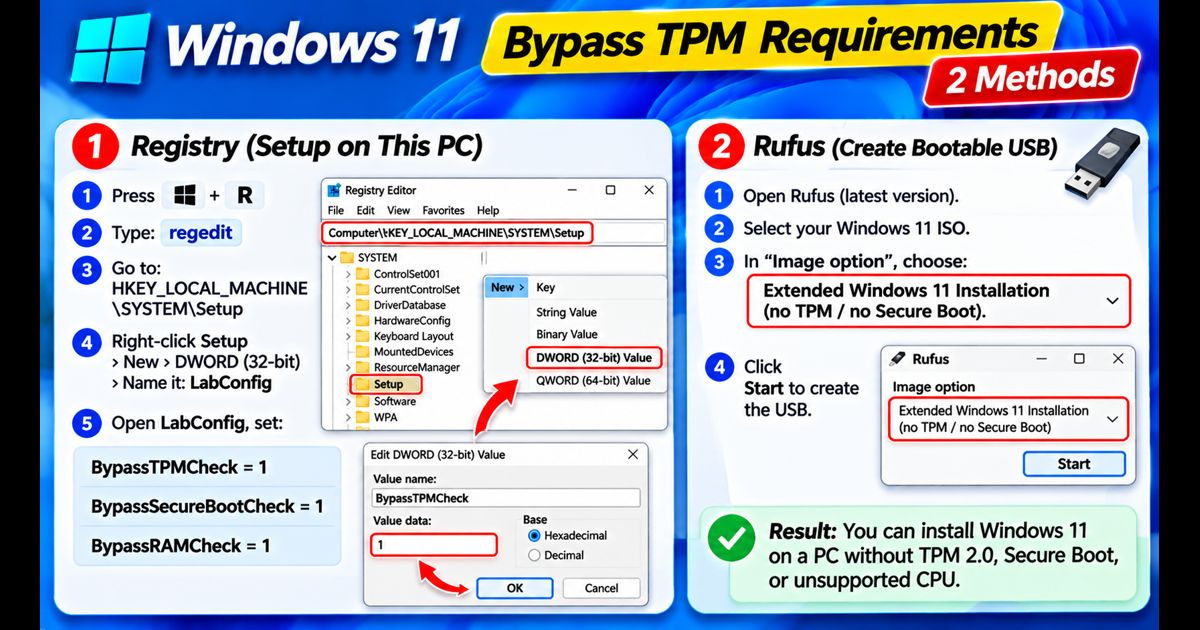
The simplest method is creating your bootable installation media using the free utility Rufus. When burning the official Windows 11 ISO onto a USB drive, Rufus presents an automatic popup: check the box labeled Remove requirement for 4GB+ RAM, Secure Boot, and TPM 2.0. This creates a modified installer that installs on any PC without throwing hardware compatibility errors.
Method 1: The Automated Rufus USB Bypass (Recommended for Clean Installs)
Rufus is a widely trusted, open-source utility that modifies the Windows installation configuration automatically, saving you from manual command-line typing.
- Download the official Windows 11 ISO directly from Microsoft's software download portal.
- Download the latest release of Rufus (available as a portable executable from rufus.ie).
- Insert a USB flash drive (at least 8GB capacity) into your computer.
- Launch Rufus. In the Device dropdown, select your USB drive.
- Click the SELECT button and choose your downloaded Windows 11 ISO file.
- Under Image option, leave it as Standard Windows 11 Installation.
- Click the START button at the bottom.
- A Windows User Experience customization window will pop up automatically. Check the first box: Remove requirement for 4GB+ RAM, Secure Boot and TPM 2.0. *(Optional: You can also check "Remove requirement for an online Microsoft account" to set up a local user).*
- Click OK. Rufus will write the modified installer to your flash drive.
- Boot your unsupported computer from this USB drive and proceed through installation normally.
Method 2: The Shift + F10 Registry Bypass (During Windows Setup)
If you already booted from a standard Windows 11 USB drive and encountered the error message stating "This PC can't run Windows 11," you can bypass the check immediately without restarting or remaking your USB drive.
- On the screen displaying the "This PC can't run Windows 11" error, press Shift + F10 on your keyboard (on some laptops, press Shift + Fn + F10) to open the Command Prompt.
- Type
regeditand press Enter to open the Registry Editor. - In the address bar or left navigation tree, navigate to:
HKEY_LOCAL_MACHINE\SYSTEM\Setup - Right-click on the Setup key, select New > Key, and name it:
LabConfig - Click on the newly created LabConfig folder.
- Right-click in the empty space on the right side, select New > DWORD (32-bit) Value, and create three distinct values:
- Name:
BypassTPMCheck— double-click and set Value data to 1 - Name:
BypassSecureBootCheck— double-click and set Value data to 1 - Name:
BypassRAMCheck— double-click and set Value data to 1
- Name:
- Close both the Registry Editor and the Command Prompt window.
- Click the Back arrow in the top-left corner of the Windows Setup window once, then click Next again.
- Windows Setup will bypass the hardware barrier and take you directly to the license agreement screen.
Method 3: In-Place Upgrade Bypass via Windows 10 Registry (Keep All Files)
If your computer is currently running a fully functional Windows 10 installation and you want to upgrade to Windows 11 without wiping your personal files or programs, use Microsoft's official fallback registry key.
- On your Windows 10 desktop, press Windows Key + S, type regedit, and click Run as administrator.
- Navigate to the following registry path:
HKEY_LOCAL_MACHINE\SYSTEM\Setup\MoSetup - In the right pane, right-click, select New > DWORD (32-bit) Value, and name it:
AllowUpgradesWithUnsupportedTPMOrCPU - Double-click the new value, change its Value data from
0to 1, and click OK. - Download the official Windows 11 ISO, right-click it, select Mount, and double-click
setup.exe. - The installer will proceed with the upgrade, displaying only a standard acknowledgment warning rather than blocking your installation.
Windows 11 Official Requirements vs. Bypass Feasibility
| Hardware Component | Official Requirement | Can It Be Bypassed? | Real-World Performance |
|---|---|---|---|
| TPM Module | TPM 2.0 Chip | Yes (100%) | Zero noticeable impact on daily computing tasks |
| Secure Boot | UEFI Secure Boot capable | Yes (100%) | Works on Legacy BIOS & MBR with Rufus |
| RAM | 4 GB Minimum | Yes | Windows 11 runs on 2GB, but 8GB+ recommended |
| Storage | 64 GB Available Drive | Yes | Consult our guide on how to clean C drive to free space |
| CPU Architecture | 8th Gen Intel / Zen 2 AMD | Yes | Runs smoothly on 6th/7th Gen Intel and older AMD CPUs |
Do Unsupported PCs Still Receive Windows Updates?
Yes. Despite early speculation that Microsoft would block updates on unsupported hardware, computers running bypassed Windows 11 installations continue to receive standard monthly cumulative security updates and Defender antivirus definitions via standard Windows Update.
However, once your installation is complete, older hardware benefits greatly from routine tuning. Be sure to check our optimization guides:
- Follow our master guide on how to speed up Windows 11 to disable heavy visual effects.
- Keep background resource usage low by learning how to disable startup apps on Windows 11.
- Remove pre-installed bloatware that slows down older processors with our tutorial on Windows 11 bloatware removal.
Frequently Asked Questions
Is it safe to run Windows 11 without TPM 2.0?
Yes. The TPM module is primarily used by enterprise encryption features such as BitLocker and Windows Hello biometric authenticators. Standard web browsing, gaming, office work, and day-to-day computing do not require an active TPM 2.0 chip.
Can I upgrade an MBR / Legacy BIOS computer?
Yes. When using Rufus to generate your installation USB, select MBR under Partition scheme and BIOS (or UEFI-CSM) under Target system. This enables Windows 11 to boot on classic BIOS motherboards without requiring conversion to GPT.