Windows 11 Bloatware Removal: How to Debloat Your PC Safely
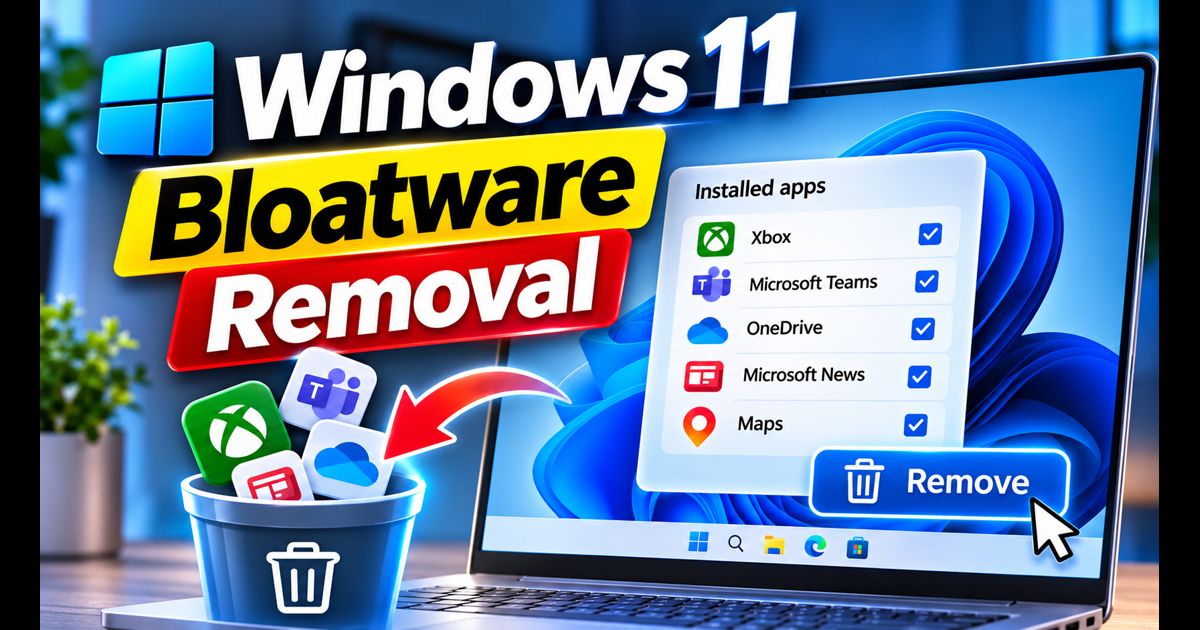
When you perform a fresh installation of Windows 11 or set up a brand-new computer, the operating system arrives packed with pre-installed applications you likely never asked for. From sponsored casual games and trial software to redundant utility packages, this pre-loaded clutter is commonly known as bloatware.
Bloatware does more than just occupy storage space on your drive. Many of these applications register background services, initiate scheduled update tasks, and display unprompted system tray notifications that consume CPU cycles and RAM. Safely debloating your system is one of the most effective steps alongside our guide on how to speed up Windows 11 to maintain peak performance.
Quick Answer: How to Debloat Windows 11 Safely
To remove bloatware from Windows 11 safely, first uninstall sponsored consumer apps via Settings > Apps > Installed apps. For stubborn system-level packages (such as Xbox overlays or pre-installed news feeds), open PowerShell as Administrator and run the native Get-AppxPackage command targeting specific non-critical apps. Avoid one-click script utilities that purge core Windows framework dependencies.
Method 1: Uninstall Sponsored Apps via Windows 11 Settings
Microsoft allows standard user-level uninstallation for many sponsored third-party items directly through the graphical user interface. This is the safest starting point.
- Press Windows Key + I to open the Settings app.
- Select Apps from the left-hand navigation menu, then click on Installed apps.
- Use the search bar or scroll through the alphabetical list to identify sponsored items (common examples include pre-loaded social apps, trial antivirus suites, and third-party music streaming tools).
- Click the three dots (...) on the right side of the app row and select Uninstall.
- Confirm the prompt to remove the package and its local configuration files completely.
Method 2: Remove Stubborn Built-in Packages via PowerShell
Certain pre-loaded Microsoft apps lack an active "Uninstall" option in the Settings menu. You can remove these packages cleanly using native Windows PowerShell commands without downloading external executable utilities.
- Right-click the Start button (or press Windows Key + X) and select Terminal (Admin) or PowerShell (Admin).
- To remove the pre-installed Xbox App and overlays (if you do not game on your PC), enter:
Get-AppxPackage *xboxapp* | Remove-AppxPackage - To remove the Get Help application:
Get-AppxPackage *Microsoft.GetHelp* | Remove-AppxPackage - To remove the 3D Viewer package:
Get-AppxPackage *Microsoft.3DBuilder* | Remove-AppxPackage - To remove pre-loaded Solitaire and casual game bundles:
Get-AppxPackage *Microsoft.MicrosoftSolitaireCollection* | Remove-AppxPackage
Warning: Never execute broad blanket wildcard commands such as
Get-AppxPackage * | Remove-AppxPackage. Purging core packages will break the Microsoft Store, Windows Security Dashboard, and native photo viewers.
Method 3: Batch Clean Packages Using Windows Package Manager (Winget)
Windows 11 includes a powerful command-line package manager called Winget. It can accurately identify application IDs and remove bloatware silently.
- Open Command Prompt or PowerShell as Administrator.
- View all installed software packages on your machine by running:
winget list - Locate the exact name or ID of the app you wish to delete.
- Run the uninstall command using the specific package ID. For example, to remove Cortana:
winget uninstall Microsoft.549981C3F5F10_8wekyb3d8bbwe - Winget will uninstall the target package silently in the background without launching external setup wizards.
Windows 11 Bloatware: Safe vs. Unsafe to Remove
Before purging apps from your operating system, review this quick reference checklist to avoid breaking core operating system features:
| Application Name | Status | Impact of Removal |
|---|---|---|
| Clipchamp Video Editor | Safe to Remove | Freeware editor. Zero impact on native video playback. |
| Microsoft News & Weather | Safe to Remove | Disables widget feeds; reduces background network polls. |
| Spotify / TikTok / Instagram | Safe to Remove | Third-party consumer shortcuts. Safe to purge anytime. |
| Feedback Hub / Tips | Safe to Remove | Reduces background telemetry and suggestion popups. |
| Microsoft Store | Do Not Remove | Required for critical system updates, HEVC codecs, and drivers. |
| Windows Security (Defender) | Do Not Remove | Essential real-time antivirus and kernel protection barrier. |
Method 4: Turn Off Start Menu App Promotions & Recommendations
Even after removing bloatware, Windows 11 may periodically display suggestions and newly promoted cloud shortcuts on your Start Menu.
- Go to Settings > Personalization > Start.
- Toggle Show recommendations for tips, shortcuts, new apps, and more to Off.
- Next, navigate to Settings > System > Notifications.
- Scroll down to the bottom, expand Additional settings, and uncheck:
- Show the Windows welcome experience after updates
- Suggest ways to get the most out of Windows and finish setting up this device
- Get tips and suggestions when using Windows
Frequently Asked Questions
Will Windows Updates reinstall deleted bloatware?
Minor cumulative security updates will not reinstall apps you have manually removed. However, major annual feature updates (such as 23H2 or 24H2) may occasionally re-provision default consumer shortcuts. Keeping a list of your preferred removal commands allows you to re-run them in under one minute.
Are third-party debloater scripts safe?
Pre-packaged "one-click debloat" scripts available on the internet frequently disable core Windows services, break printing queues, or corrupt Windows Update components. Using native Settings, manual PowerShell commands, and Winget is always the safest and most reliable approach.