How to Speed Up Windows 11: 7 Proven Ways to Boost Performance
Windows 11 introduces a modern visual aesthetic, enhanced window snapping, and improved security defaults. However, on machines with modest hardware—or systems that have accumulated months of background clutter—it can occasionally feel sluggish, suffer from delayed app launches, or consume excessive system memory.
You do not need third-party registry cleaners or dubious booster software to restore snappiness. By adjusting native operating system toggles, you can reclaim hardware resources and significantly improve daily responsiveness.
Quick Answer: The Fastest Way to Speed Up Windows 11
To speed up Windows 11 immediately without rebooting, press Ctrl + Shift + Esc to open Task Manager, navigate to Startup apps, and disable high-impact programs like Spotify, Discord, or cloud updaters. Next, open Settings > Accessibility > Visual effects and turn off Transparency effects and Animation effects to reduce immediate GPU and RAM overhead.
1. Disable High-Impact Startup Applications
Many desktop applications configure themselves to launch automatically alongside Windows. This drastically increases your computer's boot time and keeps background processes running in the system tray, consuming active memory.
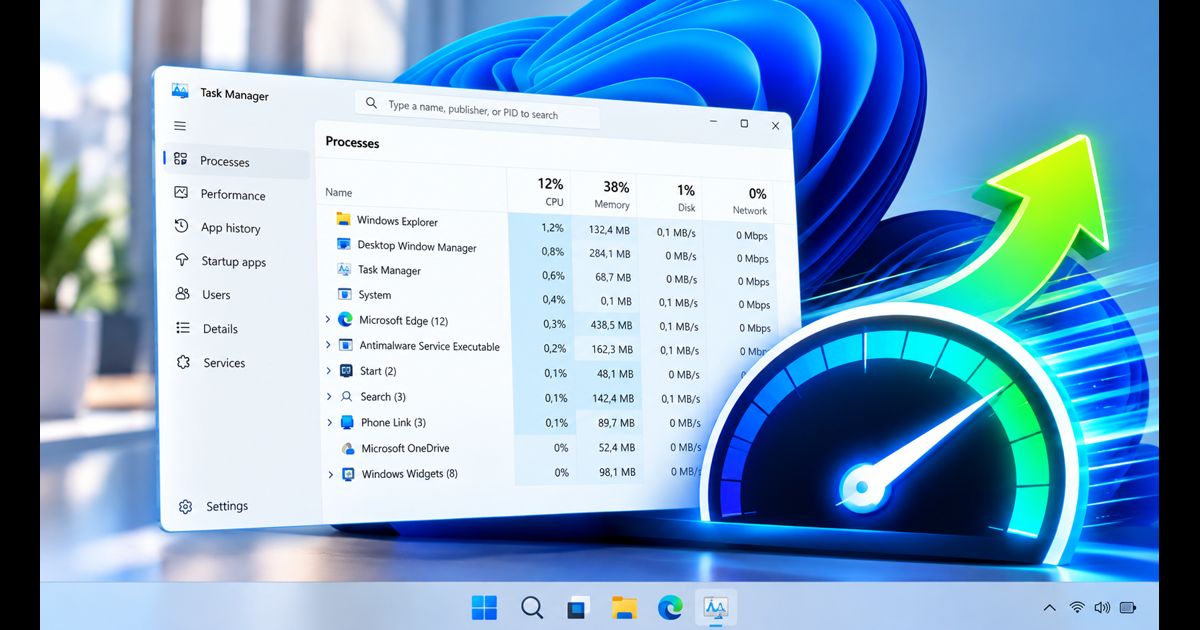
- Press Ctrl + Shift + Esc on your keyboard to open the Task Manager.
- From the left sidebar, click on the Startup apps icon (speedometer icon).
- Review the Startup impact column. Identify non-essential applications marked as High or Medium.
- Right-click on third-party programs you do not need immediately upon boot (such as game launchers, chat clients, or media players) and select Disable.
Note: Disabling an app from startup does not uninstall it. You can still launch and use the software normally whenever you need it.
2. Turn Off Windows 11 Visual Effects and Transparency
Windows 11 utilizes the Mica material and subtle blur effects across taskbars, window headers, and menus. While visually appealing, continuous alpha-channel rendering drains GPU cycles and battery life on integrated graphics processors.
- Open the Settings app by pressing Windows Key + I.
- Navigate to Accessibility in the left pane, then click on Visual effects.
- Toggle Transparency effects to Off.
- Toggle Animation effects to Off.
Windows will instantly feel more responsive, as dialog boxes and context menus snap open without frame rendering delays.
3. Automate Storage Cleanup with Storage Sense
Accumulated temporary files, leftover Windows update caches, and cached browser data consume drive space. Solid State Drives (SSDs) require at least 15% to 20% free space to maintain optimal read and write write speeds.
- Go to Settings > System > Storage.
- Under the Storage management section, toggle Storage Sense to On.
- Click into Storage Sense to configure automatic cleanup schedules for the Recycle Bin and Temporary files.
- Return to the main Storage screen, click on Temporary files, check Previous Windows installation(s) or Delivery Optimization Files, and click Remove files.
4. Switch Power Mode to Best Performance
If you are using a desktop PC or a laptop plugged into wall power, Windows may default to a balanced energy profile that throttles CPU clock frequencies during light tasks.
- Navigate to Settings > System > Power & battery.
- Locate the Power mode dropdown selector.
- Change the setting from Balanced to Best performance.
This ensures your processor ramps up to its maximum turbo clock frequency without aggressive thermal throttling delays.
5. Disable Background App Permissions
Packaged Microsoft Store apps frequently run background tasks to fetch push notifications, live feeds, and background telemetry even when closed.
- Open Settings > Apps > Installed apps.
- Find applications you rarely use (such as Weather, Xbox, or News), click the three dots (...), and select Advanced options.
- Under Background apps permissions, change the dropdown setting to Never.
6. Repair Corrupted System Files (DISM & SFC)
If system slowdowns are accompanied by intermittent freezes or File Explorer crashes, underlying system files may be out of alignment. You can repair them safely using Windows built-in command utilities.
- Press Windows Key + S, type cmd, and click Run as administrator.
- Type the following command and hit Enter:
DISM /Online /Cleanup-Image /RestoreHealth - Allow the deployment image tool to download healthy system components from Windows Update.
- Once complete, type the following command to check and repair local protected files:
sfc /scannow - Restart your PC after the scan completes.
Performance Impact Summary
| Optimization Step | Difficulty | Primary System Benefit |
|---|---|---|
| Disable Startup Programs | Easy (1 min) | 30-50% faster boot times; frees 300MB - 1GB RAM |
| Turn Off Visual Animations | Easy (30 secs) | Zero UI rendering latency; lighter GPU usage |
| Storage Sense Temporary Purge | Easy (2 mins) | Reclaims 5GB - 20GB disk space; restores SSD write speed |
| Set Power to Best Performance | Easy (30 secs) | Instant CPU frequency responsiveness |
| DISM & SFC File Health Scan | Moderate (10 mins) | Fixes unexplained micro-stutters and Explorer crashes |
Frequently Asked Questions
Does disabling startup apps break system features?
No. Disabling third-party startup applications only prevents them from launching unprompted when Windows turns on. Crucial audio drivers, display services, and Windows security shields remain protected and functional.
Do PC cleaner programs actually work on Windows 11?
Modern Windows 11 manages memory and background caching natively. Third-party "RAM boosters" and automated registry cleaners often cause more harm than good by prematurely terminating legitimate cached background processes.