How to Disable Startup Apps on Windows 11 (Cut Boot Time in Half)
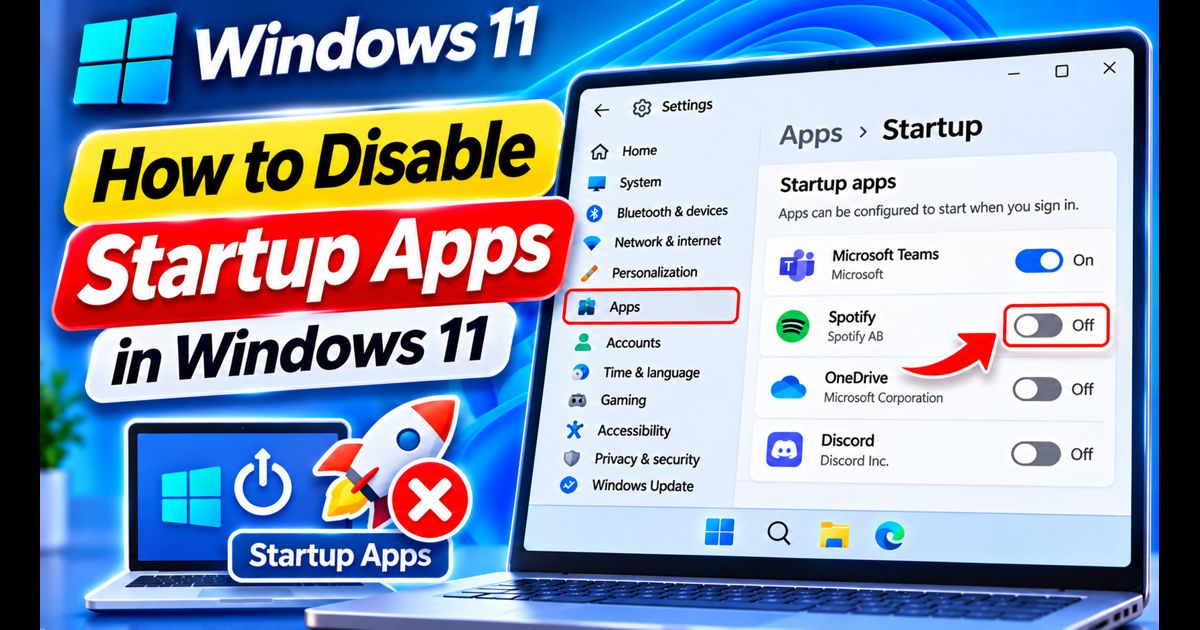
When you turn on your Windows 11 computer, does it take several minutes before your desktop feels responsive? In most cases, a sluggish boot time is not caused by weak hardware or malware—it is the result of dozens of desktop applications quietly configuring themselves to launch automatically the moment you sign in.
From chat clients and cloud sync tools to game launchers and updater services, these startup programs hoard gigabytes of system memory (RAM) and keep your CPU busy during boot. By disabling non-essential startup items, you can frequently cut your computer's startup time by 50% or more.
Quick Answer: The Fastest Way to Disable Startup Apps
To disable startup apps on Windows 11, press Ctrl + Shift + Esc to launch Task Manager. Click on the Startup apps icon (speedometer) on the left sidebar. Sort by the Startup impact column, right-click any high-impact third-party program (such as Spotify, Discord, or Steam), and select Disable.
Method 1: Manage Startup Programs via Task Manager (Recommended)
The Windows 11 Task Manager provides the most informative overview of your autostart applications, including measured boot performance metrics.
- Press Ctrl + Shift + Esc on your keyboard (or right-click the Start button and choose Task Manager).
- Click the Startup apps tab on the left navigation bar (represented by a speedometer icon).
- Look at the top-right corner to see your Last BIOS time—this indicates how long your hardware takes before Windows starts loading.
- Click the Startup impact column header to sort apps from High to Low.
- Select the program you wish to stop from launching automatically, then click Disable in the top command bar (or right-click the row and choose Disable).
- The Status column will immediately update from Enabled to Disabled.
Note: Disabling an application does not delete or break it. You can still open and use the software anytime by double-clicking its desktop icon or searching for it on the Start Menu.
Method 2: Disable Startup Programs via Windows 11 Settings
If you prefer a clean touch-friendly toggle interface, the native Windows 11 Settings app offers a dedicated startup manager.
- Press Windows Key + I to open the Settings app.
- Select Apps from the left sidebar, then click on Startup at the bottom of the right-hand panel.
- Windows will display a list of all detected startup applications accompanied by toggle switches.
- Sort the list by Startup impact or Name.
- Simply switch the toggle from On to Off next to any application you do not require immediately upon boot.
Method 3: Check the Hidden Startup Folder (shell:startup)
Some legacy software programs bypass modern Windows 11 startup registries and place direct executable shortcuts into a hidden system folder.
- Press Windows Key + R on your keyboard to open the Run dialog box.
- Type
shell:startupand press Enter. - File Explorer will open directly to your personal user Startup directory (
%AppData%\Microsoft\Windows\Start Menu\Programs\Startup). - If you see any program shortcuts here that you do not want opening on boot, right-click and delete them. Deleting the shortcut only removes the autostart instruction; the main program remains installed.
- To inspect system-wide startup shortcuts shared by all user accounts, press Windows Key + R, type
shell:common startup, and press Enter.
Method 4: Clean Stubborn Autostart Keys in Windows Registry
Persistent updaters and utility tools often lodge themselves into the Windows Registry Run key. You can safely inspect these entries using Registry Editor.
- Press Windows Key + S, type regedit, and click Run as administrator.
- Navigate to the primary user startup key:
HKEY_CURRENT_USER\Software\Microsoft\Windows\CurrentVersion\Run - Inspect the strings in the right-hand panel. If you recognize an unneeded updater or utility, right-click it and choose Delete.
- Next, check the machine-wide startup key:
HKEY_LOCAL_MACHINE\SOFTWARE\Microsoft\Windows\CurrentVersion\Run - Delete any unwanted third-party software entries, then close Registry Editor.
Startup Apps Checklist: What Is Safe to Disable?
| Application Type | Common Examples | Safe to Disable? |
|---|---|---|
| Chat & Social Clients | Discord, Skype, Teams, Slack, WhatsApp | 100% Safe (Saves 300MB - 800MB RAM) |
| Media Players & Streaming | Spotify, iTunes, VLC, Steam, Epic Games | 100% Safe (Major boot time saver) |
| Cloud Storage Sync | OneDrive, Google Drive, Dropbox | Safe (Disable only if you don't need instant sync) |
| Audio & Display Drivers | Realtek Audio, Waves MaxxAudio, NVIDIA / AMD | Keep Enabled (Preserves sound & display controls) |
| Antivirus & Security | Windows Security Notification, Malwarebytes | Keep Enabled (Crucial security barrier) |
Next Steps for Maximum PC Speed
Disabling startup apps resolves boot bottlenecks. To optimize overall computing performance, memory usage, and drive health further, explore our companion guides:
- Follow our master checklist on how to speed up Windows 11 for visual effect and power plan optimizations.
- Free up gigabytes of occupied drive space using our tutorial on how to clean C drive on Windows 11.
- Purge pre-installed sponsored junk cleanly with our guide to Windows 11 bloatware removal.
Frequently Asked Questions
Why do apps keep enabling themselves at startup?
When certain applications install major software updates (for example, Discord or Spotify), their installers may overwrite your previous settings and re-enable the autostart flag. Checking your Task Manager startup list once a month prevents background creep.
Does disabling startup apps prevent them from receiving messages?
Yes. If you disable a messaging application like WhatsApp or Discord from starting with Windows, you will not receive live incoming call or chat notifications until you manually open the app.