How to Disable Telemetry in Windows 11 (Privacy & Performance Guide)
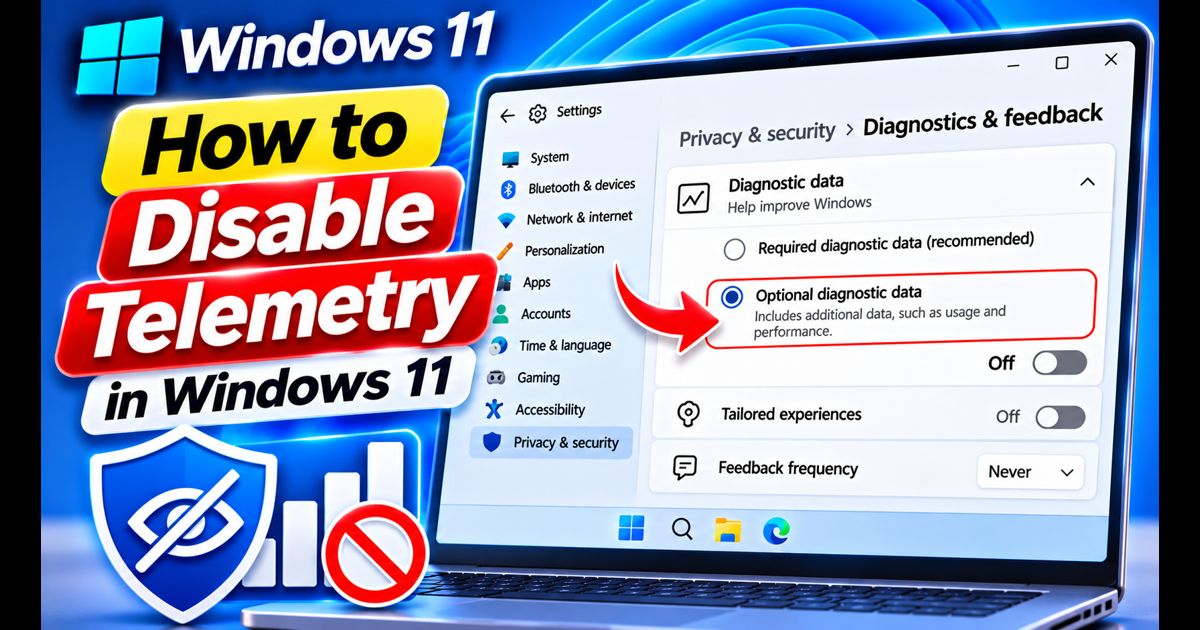
By default, Windows 11 regularly collects usage logs, system performance metrics, hardware crash dumps, and device diagnostics to transmit back to Microsoft servers. While Microsoft frames this telemetry as essential for debugging and product enhancement, it raises valid privacy concerns and silently consumes background CPU cycles, RAM, and network bandwidth.
If you prefer a lightweight computing environment with minimal background polling, you can significantly restrict or disable Windows 11 telemetry. Best of all, you can do this using native system utilities without installing sketchy third-party privacy scripts that could destabilize your operating system.
Quick Answer: The Fastest Way to Disable Windows 11 Telemetry
To restrict telemetry immediately, go to Settings > Privacy & security > Diagnostics & feedback. Toggle Send optional diagnostic data to Off, and turn off Tailored experiences. Next, open services.msc, locate Connected User Experiences and Telemetry (DiagTrack), set its Startup type to Disabled, and click Stop.
Method 1: Turn Off Diagnostic Data and Tailored Experiences in Settings
The standard Windows 11 interface provides straightforward switches to minimize the volume of personal usage data transmitted to cloud servers.
- Press Windows Key + I to open the Settings app.
- Select Privacy & security in the left-hand menu, then click on Diagnostics & feedback.
- Expand the Diagnostic data section. Ensure the toggle for Send optional diagnostic data is set to Off (this prevents Windows from transmitting your browsing history, in-depth app usage logs, and detailed device states).
- Scroll down and expand Tailored experiences. Toggle this option to Off to stop Microsoft from analyzing diagnostic data for targeted ads and recommendations.
- Expand Feedback frequency and set Windows should ask for my feedback to Never.
- Finally, expand Delete diagnostic data and click the Delete button to purge records previously mirrored on Microsoft servers.
Related Reading: Telemetry services run alongside other non-essential background packages. Pair these tweaks with our checklist on Windows 11 bloatware removal for a noticeably cleaner system.
Method 2: Disable the Connected User Experiences and Telemetry Service
The core engine responsible for compiling and transmitting diagnostic logs is a native background service named DiagTrack (Connected User Experiences and Telemetry). Disabling this service stops background logging at the kernel level.
- Press Windows Key + R on your keyboard to open the Run dialog.
- Type
services.mscand press Enter to launch the Services manager. - Scroll down through the alphabetical list to find Connected User Experiences and Telemetry.
- Double-click the service to open its Properties dialog.
- Under the General tab, change the Startup type dropdown menu from Automatic to Disabled.
- Click the Stop button under Service status to halt the active background task immediately.
- Click Apply, then click OK.
Method 3: Disable Telemetry via Local Group Policy (Windows 11 Pro & Enterprise)
If you are running Windows 11 Pro, Education, or Enterprise, the Group Policy Editor provides an enforceable policy rule to lock diagnostic tracking down.
- Press Windows Key + R, type
gpedit.msc, and hit Enter. - In the left sidebar, navigate through the following folder tree:
Computer Configuration > Administrative Templates > Windows Components > Data Collection and Preview Builds - In the right-hand panel, double-click the policy named Allow Diagnostic Data (or Allow Telemetry on older builds).
- Select the Enabled radio button.
- In the Options dropdown menu below, select Diagnostic data off (Enterprise and Education only) or Send required (basic) diagnostic data.
- Click Apply and OK.
Method 4: Restrict Telemetry via Windows Registry (Windows 11 Home)
Windows 11 Home does not include the Group Policy Editor, but you can achieve the exact same restriction using the Windows Registry Editor.
- Press Windows Key + S, type regedit, and click Run as administrator.
- Navigate to the following key by pasting this path into the address bar:
HKEY_LOCAL_MACHINE\SOFTWARE\Policies\Microsoft\Windows\DataCollection - In the right-hand pane, check if a DWORD value named
AllowTelemetryexists. If not, right-click an empty area, select New > DWORD (32-bit) Value, and name itAllowTelemetry. - Double-click
AllowTelemetry, set its Value data to0(Security/Off) or1(Basic required data), and click OK. - Restart your PC to apply the registry configuration.
Windows 11 Telemetry Levels Compared
| Telemetry Level | Data Transmitted | Performance & Privacy Impact |
|---|---|---|
| Full / Optional (Default) | Detailed crash dumps, app activity, browser history, device state | High background polling; reduced privacy |
| Required / Basic | Hardware specs, security patches, critical update errors | Minimal overhead; keeps system updates fully functional |
| Disabled (DiagTrack Off) | Zero ongoing background diagnostic logs transmitted | Maximum privacy; reduces background RAM & CPU usage |
Does Disabling Telemetry Break Windows Updates?
No. Standard security patches, defender virus definitions, and cumulative monthly updates are managed by the Windows Update service (wuauserv), not DiagTrack. Disabling optional diagnostic data and the Connected User Experiences service will not prevent your PC from receiving essential Microsoft security updates.
For more steps to improve overall operating system responsiveness, explore our pillar guide on how to speed up Windows 11.
Frequently Asked Questions
Can I completely remove all Microsoft tracking?
You can turn off optional diagnostics, ad identifiers, and telemetry services. However, core operating system handshakes (such as time synchronization, license activation, and Windows Defender cloud lookups) require minimal communication with Microsoft servers to function.
Do privacy script tools like O&O ShutUp10 cause issues?
While reputable tools like O&O ShutUp10 are popular, applying aggressive "recommended + somewhat recommended" presets can accidentally break the Windows Store, Xbox Game Pass, or network printer discovery. Using the native Settings, Services, and Group Policy methods outlined above ensures safe, reversible changes.