How to See Wi-Fi Password on Windows 11 (2 Fast Methods)
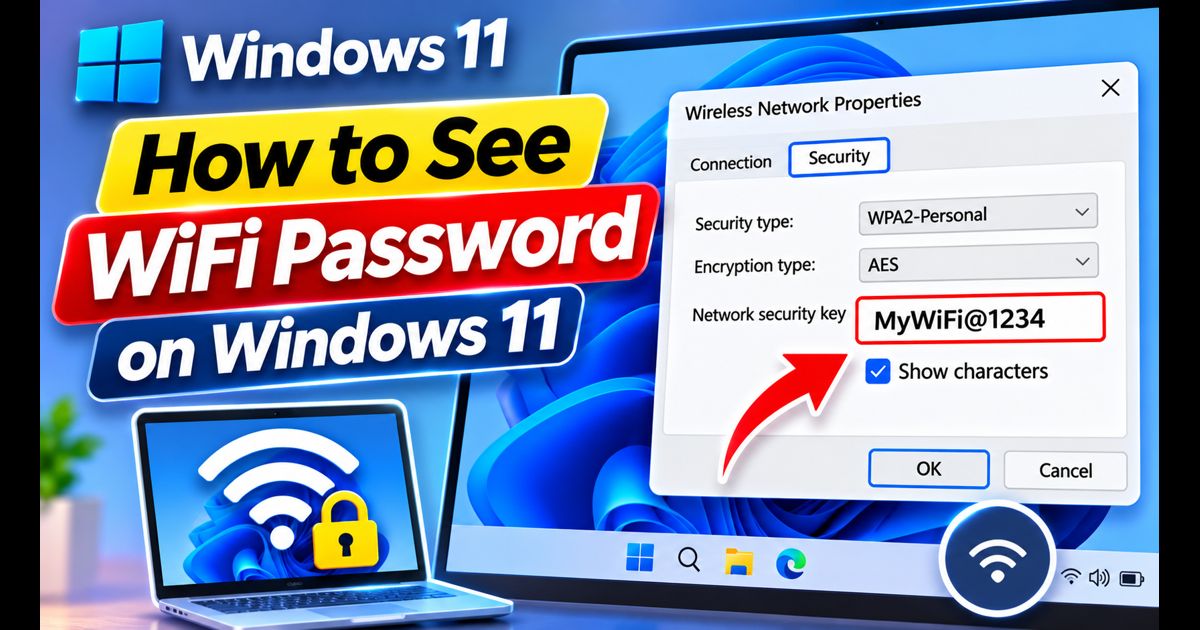
Connecting a new phone, smart TV, or guest laptop to your wireless network usually requires digging through drawers for your physical router sticker. Fortunately, if your Windows 11 laptop or desktop is already connected—or has previously connected—to the network, the operating system stores your security key locally.
You do not need to install dubious password-recovery utilities or reset your home router. Windows 11 provides two native, completely secure ways to reveal your Wi-Fi password in plain text within seconds.
Quick Answer: The Fastest Way to View Your Wi-Fi Password
To view your active Wi-Fi password on Windows 11, open Settings > Network & internet > Wi-Fi, click on your active network properties, and scroll down to the Wi-Fi security key section. Click the View button. Windows will instantly unhide your network password in plain text.
Method 1: Check Wi-Fi Password via Windows 11 Settings (Active Network)
Modern builds of Windows 11 feature a dedicated password viewer directly inside the native Settings app. This is the simplest approach when you are currently connected to the network.
- Press Windows Key + I on your keyboard to open the Settings app.
- Select Network & internet from the left-hand navigation pane.
- Click on Wi-Fi at the top of the menu.
- Click on Manage known networks (or click directly on your current network's Properties card).
- Select your Wi-Fi network name (SSID) from the list.
- Scroll down to find the Wi-Fi security key row.
- Click the View button next to the masked asterisks. If prompted by User Account Control (UAC), click Yes to confirm administrative privileges.
- Your wireless security key will appear in clear, readable text.
Tip: If you are optimizing your PC setup alongside your network, check out our guide on how to speed up Windows 11 to reduce background latency and startup lag.
Method 2: Reveal Any Saved Wi-Fi Password via Command Prompt (CMD)
What if you need the password for a network you are not currently connected to—such as your office Wi-Fi while working from home, or an old home network? Windows Command Prompt allows you to extract any saved profile key instantly.
- Press Windows Key + S, type cmd, and click Run as administrator.
- First, list all Wi-Fi profiles ever stored on your computer by entering:
netsh wlan show profiles - Identify the exact network name (SSID) you want to inspect under the User profiles section.
- Enter the following command, replacing
NetworkNamewith your actual Wi-Fi name in quotes:netsh wlan show profile name="NetworkName" key=clear - Press Enter. Scroll down to the Security settings section in the output.
- Look for the Key Content field. The text displayed next to it is your exact Wi-Fi password.
Method 3: Classic Control Panel (Network Connections)
If you are running an older build of Windows 11 where the modern Settings viewer is not visible, you can still access the legacy Network Connections dialog:
- Press Windows Key + R to open the Run dialog.
- Type
ncpa.cpland press Enter to open Network Connections. - Double-click your Wi-Fi adapter to open the status window.
- Click the Wireless Properties button.
- Switch to the Security tab.
- Check the box labeled Show characters to unmask the Network security key.
Comparison: Which Method Should You Use?
| Method | Connection Required? | Speed | Best For |
|---|---|---|---|
| Settings App | Active or Saved | Very Fast (15 secs) | General users on modern Windows 11 builds |
| Command Prompt (netsh) | No (Any saved network) | Instant (10 secs) | Viewing passwords for offline or past networks |
| Control Panel (ncpa.cpl) | Yes (Active only) | Moderate (30 secs) | Older Windows builds or enterprise environments |
Troubleshooting: Why Isn't the Wi-Fi Password Showing?
If you encounter issues revealing the password, consider these common scenarios:
- Missing Administrator Privileges: Revealing plain-text passwords requires standard Windows administrator rights. If you are on a locked work laptop managed by an IT department, the "View" button may be greyed out.
- Enterprise Networks (802.1X): If your workplace or university Wi-Fi uses a RADIUS username and certificate rather than a pre-shared key (WPA2/WPA3 Personal), the Key Content field will appear blank because no static passphrase exists.
- System Clutter: If your network settings panel takes an unusually long time to open, consider performing a quick Windows 11 bloatware removal to clean up sluggish background tasks.
Frequently Asked Questions
Can I see the password of a Wi-Fi network I have never connected to?
No. Windows only stores cryptographic credentials for networks your device has previously authenticated with. You cannot view the password for nearby unknown networks without proper authorization.
Is it safe to reveal Wi-Fi passwords using Command Prompt?
Yes. The netsh tool is a native Microsoft diagnostic utility built into every version of Windows. It does not send credentials over the internet or modify security settings.